
Download Tenorshare 4DDiG – Free Data Recovery Tool for Windows & macOS
Overview
Tenorshare 4DDiG is a powerful data recovery program that works seamlessly on both Windows and macOS desktop systems. Whether you have accidentally deleted a family photo, lost a project document after a system crash, or need to retrieve files from a corrupted external SSD, 4DDiG offers a straightforward solution. The utility can scan internal drives, external hard drives, USB flash drives, SD cards, digital cameras, and many other storage media.
It supports more than a thousand file types, ranging from common formats such as JPG, PNG, DOCX, MP4, PDF, MP3, and ZIP to less‑frequent extensions like RAW, DWG, and PST. The software is distributed under a freemium license: a fully functional free version lets you explore the scanning engine, while the paid upgrade unlocks unlimited recovery, deep scan modes, and advanced filter options. Compared with rivals like Wondershare Recoverit and Recuva, Tenorshare 4DDiG stands out for its clean interface, fast scan speeds, and reliable preview capability.
Even users with limited technical knowledge can follow the three‑step recovery wizard—select the lost location, start scanning, preview results, and recover the chosen files. The program also includes a built‑in file compression feature that lets you zip recovered files without sacrificing quality, which is handy when you need to store large video archives after a rescue operation. In short, Tenorshare 4DDiG is a versatile, secure, and user‑friendly data recovery tool that addresses a wide variety of loss scenarios, making it a solid addition to any computer owner’s toolkit.
Key Features
- Cross‑platform support – works on Windows 7/8/10/11 and macOS 10.12 and later.
- Recovery of over 1,000 file formats, including photos, videos, audio, documents, emails, and archives.
- Three scanning modes: Quick Scan, Deep Scan, and Advanced Deep Scan for severely damaged partitions.
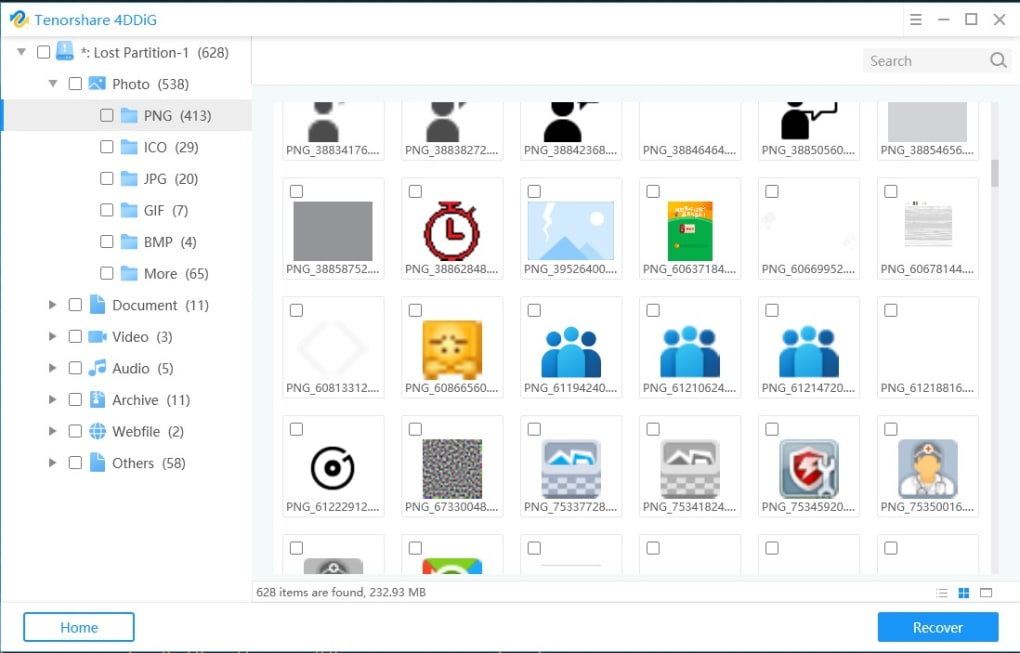
- Live preview of recoverable files before committing to the restore process.
- Selective recovery with filter options by file type, size, date, and location.
- Built‑in file compression to create zip archives of recovered data without quality loss.
- Secure handling – recovered files are saved to a separate drive to avoid overwriting lost data.
- Freemium model – free version for scanning and preview, paid license for unlimited recovery.
- Intuitive three‑step wizard that guides beginners through the entire recovery workflow.
- Regular updates that add new file format support and improve scan algorithms.
Each feature is designed to streamline the recovery experience. For instance, the Quick Scan mode is ideal when you accidentally delete a handful of files and need an immediate solution; it finishes within minutes on most modern SSDs. Conversely, the Advanced Deep Scan digs deep into corrupted sectors, employing sophisticated algorithms that reconstruct fragmented file fragments—a crucial capability when dealing with a failed hard drive or a formatted partition.
The live preview function eliminates the guesswork typically associated with data recovery; you can open images, play videos, or read documents directly within the program to confirm they are intact before you press the “Recover” button. This reduces wasted effort and ensures that only the files you truly need are restored. Moreover, the selective recovery filters let you narrow down results, saving time on large drives that contain millions of files.
The built‑in compression utility is especially useful for users who need to share recovered media via email or cloud storage, as it automatically creates high‑compression zip files while preserving the original resolution of photos and the audio fidelity of music tracks. Finally, Tenorshare’s commitment to regular updates means the software stays compatible with the latest operating system releases and continues to expand its format library, keeping the tool relevant for years to come.
Installation, Usage & Compatibility
System Requirements
Tenorshare 4DDiG runs on 64‑bit Windows (7, 8, 10, 11) and macOS (10.12 Sierra or newer). Minimum RAM: 2 GB (4 GB recommended). Disk space: at least 300 MB for the program files plus additional space for temporary scan data.
Step‑by‑Step Installation
- Visit the official Tenorshare website and click the “Download Free Version” button for your operating system.
- Once the installer (EXE for Windows or DMG for macOS) finishes downloading, double‑click the file to launch the setup wizard.
- Accept the End‑User License Agreement, choose an installation folder (the default location works for most users), and click “Install”.
- After the installation completes, launch 4DDiG from the desktop shortcut or the Applications folder.
- The first launch may prompt you to allow the application to access external drives; grant the permission to ensure full recovery capabilities.
How to Recover Files
Using Tenorshare 4DDiG is as simple as following three clear steps:
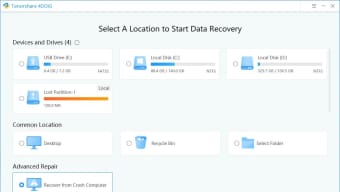
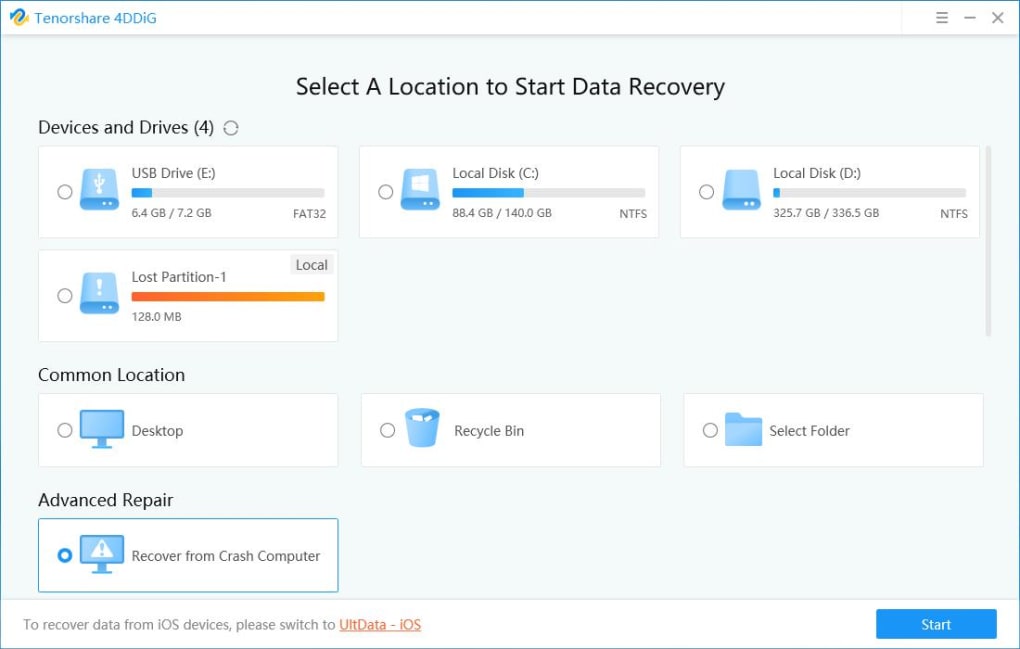
- Select the lost location: In the main window, you’ll see a list of detected drives and partitions. Choose the internal drive, external USB, SD card, or any other media where the data disappeared.
- Start scanning: Click the “Start” button on Windows or the “Scan” button on macOS. The program will first perform a Quick Scan; if the desired files aren’t found, you can switch to Deep Scan or Advanced Deep Scan from the toolbar.
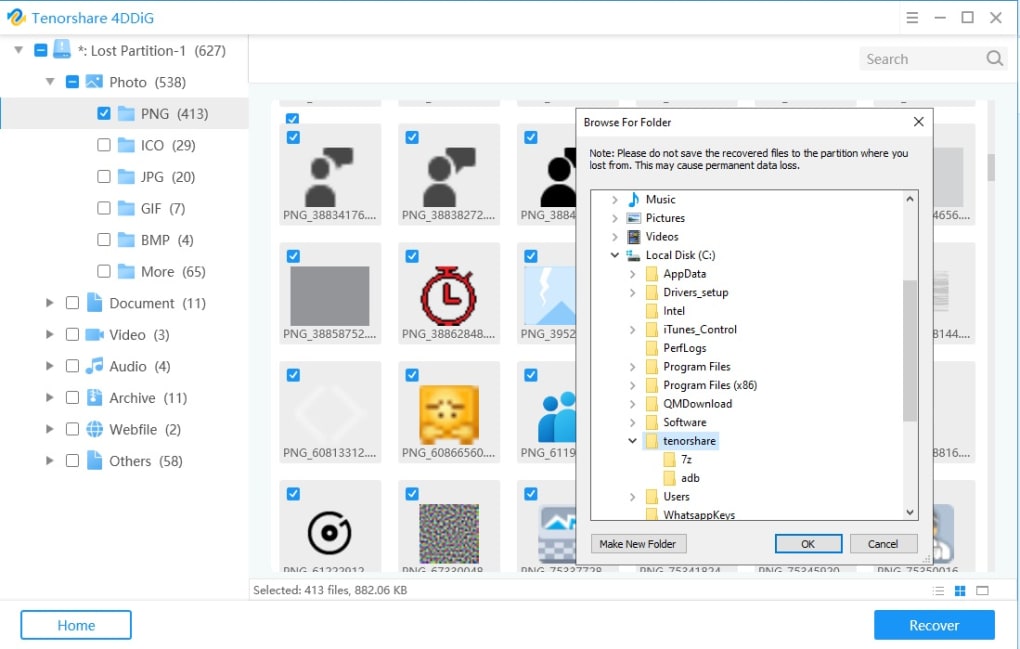
- Preview and recover: When the scan finishes, the results appear in a categorized view (Photos, Videos, Documents, etc.). Click any file to preview its contents. Tick the checkboxes next to the files you wish to restore, then press “Recover”. Choose a destination folder on a different drive—never the same partition that originally held the lost data—to avoid overwriting.
The scanning phase may take from a few minutes to several hours depending on the size of the drive and the depth of the scan. Tenorshare 4DDiG displays a progress bar and an estimated time remaining, helping you plan the recovery session. After recovery, the program automatically generates a log file that details which files were restored, their original paths, and any errors encountered. This log can be useful for auditing purposes or for troubleshooting if some files fail to recover. If you encounter a completely unreadable drive, the software also offers a “Repair Disk” utility that attempts to fix partition tables before scanning, further increasing the chance of a successful data rescue.
Pros, Cons & Frequently Asked Questions
Pros
- Supports both Windows and macOS with a single installer.
- Recovers over 1,000 file formats, covering most everyday data types.
- Three scanning modes provide flexibility for quick and deep recoveries.
- Live preview eliminates guesswork and saves time.
- Free version allows unlimited scanning and preview, making it risk‑free to test.
- Built‑in compression reduces storage requirements for large video recoveries.
- Regular updates keep the software compatible with new OS releases.
Cons
- The free edition limits the amount of data you can actually recover (typically 100 MB).
- Deep Scan can be time‑consuming on very large drives or heavily fragmented partitions.
- Advanced features such as “Repair Disk” are only available in the paid license.
FAQ
Can Tenorshare 4DDiG recover files from a formatted drive?
Yes. The Deep Scan and Advanced Deep Scan modes can locate file remnants on formatted or re‑partitioned drives by analyzing raw disk sectors, which often restores most file types even after a quick format.
Is the recovered data safe from viruses?
Tenorshare 4DDiG does not alter the original files; it merely copies them to a new location. However, it’s always recommended to run a reputable antivirus scan on recovered files, especially if the original loss was caused by malware.
How much does the full version cost?
The paid license is priced at $59.99 per year for a single PC/Mac, with a one‑time lifetime option available at a higher price. The purchase includes free updates for the duration of the subscription.
Can I use 4DDiG to recover deleted emails?
Yes. 4DDiG can locate and restore email files such as PST, OST, and EML formats from both local storage and external drives, provided the email client stored the data on a recoverable partition.
What should I do if the scan takes too long?
You can pause and resume the scan, or switch from Advanced Deep Scan to a standard Deep Scan to reduce processing time. Ensure the computer remains plugged in and avoid heavy disk activity while scanning.
Expert Review
Rating: 4.5/5
Tech Analyst Team
Tenorshare 4DDiG delivers a compelling mix of ease‑of‑use and powerful recovery capabilities. While the free version is limited in recovery size, it provides enough functionality for casual users to evaluate the software before committing. The multi‑platform support and extensive file format list make it a versatile choice for both home and professional environments. Its main drawback is the time required for thorough deep scans on very large or heavily damaged drives, but this is an industry‑standard trade‑off. Overall, 4DDiG earns a solid 4.5 out of 5 stars for reliability, user experience, and feature breadth.
Conclusion & Call to Action
Data loss can happen in a split second—whether through accidental deletion, a sudden system crash, or a corrupted external drive. Tenorshare 4DDiG equips you with a secure, cross‑platform solution that can recover more than a thousand file types from virtually any storage media. Its intuitive three‑step wizard, live preview, and selective recovery filters make the process accessible even to non‑technical users, while the deep scanning engine satisfies power users dealing with severe data corruption.
The freemium model lets you test the scanning and preview features at no cost, ensuring you only pay for the full recovery capabilities when you truly need them. If you’re looking for a reliable, regularly updated data rescue tool that works on both Windows and macOS, Tenorshare 4DDiG is a smart choice. Download the free version today and safeguard your digital memories before they disappear forever.







